In this first example we'll show the operational semantic of Image Processor, moreover we'll introduce the first fundamental elements of the scripting language.
Before writing any lines of code, we have to set application parameters and to prepare images batch.
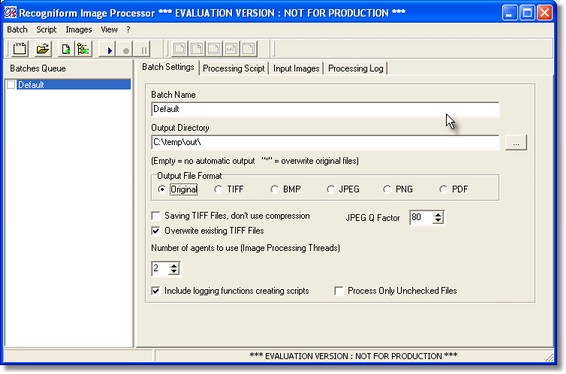
In Batch Setting section, we can set output directory the will contain the files read from the batch list and processed; moreover we can select ouput file format and the number of thread will execute image processing (default setting is three).
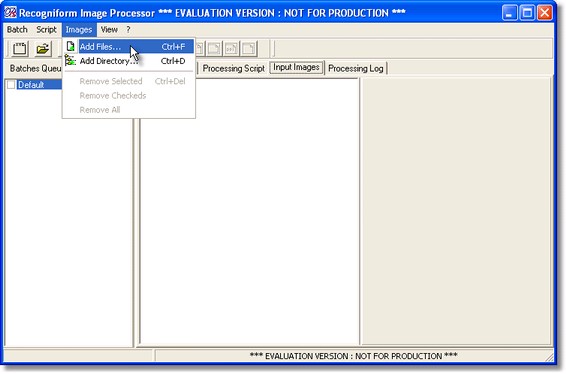
From Images Menu, we can choose add your files and your folders that made up your processing batch.
In the section Input Images, we can control batch files list and viewing each image. Images can be selected and removed using the specifc commands in Images Menu. Alternatively, we can biuld the batch using ADD Files or ADD Directory in the tool bar. In View Menu or in the tool bar, we also find commands for setting image displaying.
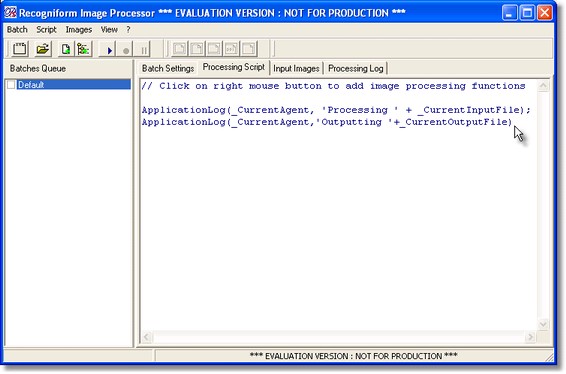
After this preliminary setting, we can select the Processing Script Section of the Main Window. There is a wide text area when we can write our script.
In this first example, we'll show how Image Processor processes the batch and we'll use the log screen for tracking the step executed by the application. Here is a simple script, useful for this aim:
ApplicationLog(_CurrentAgent, 'Processing ' + _CurrentInputFile);
ApplicationLog(_CurrentAgent,'Outputting '+_CurrentOutputFile);
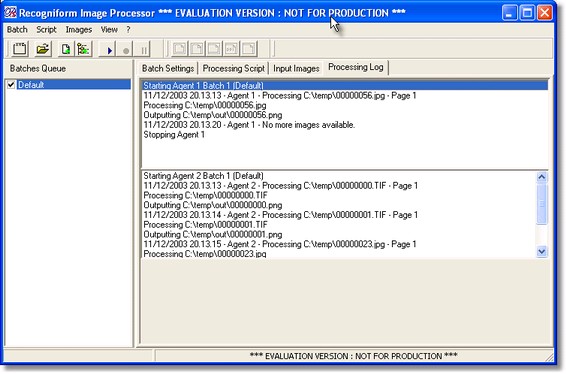
ApplicationLog allows us to write a string in the Log Track that we can look in the Processing Log Section. This procedure requires the current processing Thread and the string we want to write. The former parameter is given by the system variables _CurrentAgent; we needn't write this variable, because it automatically contains the current thread that is executing the script, in fact it is responsibility of the run-time environment to identify the current agent and to set the variable. The latter parameter in the procedure is the string we want to write in the LOG; we can easily unterstand by this simple example that we can concatenate a group of strings using '+' operator. _CurrentInputFile and _CurrentOutputFile system variables too, so, also in this case, the run time environment sets them automatically; the former contains the current input file name, including its folder path, the latter gives us the path and the name of the output file that will contain the current processed image. User never has to modify _CurrentAgent
or _CurrentInputFile; it can be useful modifying _CurrentOutputFile instead, especially when we want to redirect output.
Clicking  Start Command button in tool bar (on in Batch Menu), batch processing will start and in the Processing Log Section we can find the result of our script (before executing the elaboration (if we haven't saved the script, the program ask for saving it).
The operational semantic is so clear; the run-time environment executes the following cycle for each image in the batch list: it load an image; it processes it using our script; it ouputs the result the directory we have indicated in the Options Dialog. If we set more than one thread, this process will be distributed among the specified number of threads (concurrent processing). Now it's also clear why the system variables are called _CurrentInputFile, _CurrentOutputFile, etc.: each iteration of the cycle their value is automatically updated by the run-time environment according to the current loaded file.
In the specific case showed in this example the script doesn't operate any form of elaboration, so each image is simply copied into output directory without being modified.