Application Settings Dialog
Previous  Top  Next

Description

The Application settings dialog allows to insert and/or edit the definition form parameters.
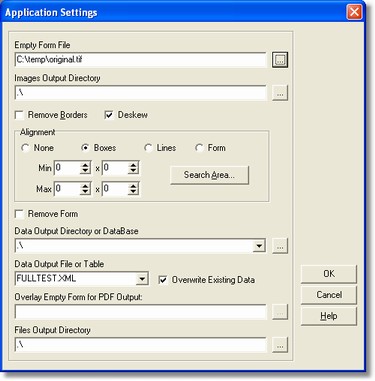
dialogosettings

How to get it

Select the New command and the Settings command from File menu.

Options

-Empty Form File  
It is the empty form (of one or more pages) shown on the screen. This is the way to identify the reading areas so, the images where you could catch the data. If the acquisition of the form delete the pre-printed form (ex: the red scanner lamp and the fair red pre-printed form), It is not possible to make carefully the selection of the recognizing areas as the lines and the boxes will be invisible. The solution is to effect a scan of a form copy so as to view all correctly and to be able to operate the fields definition. Anyway before using the application it is necessary to re-insert the original "blind" form, whereas the reading phase could be unsuccessful. Furthermore, it is suggested to use an empty form acquired with the same resolution that will acquire the documents to be read.

-Directory of Input images  
Memorization position of the images to process.

-Borders removal  
Incidental borders due by the large size of the scanned area.  
-Deskew  
Deskew
(as to the form) produced sometimes by the scanner when it is fed with ADF.

-Alignment  
Form alignment to counterbalance any vertical and horizontal movement. It is done on both special forms, printed with proper small full squares (into the four corners of the sheet), and on simple forms, by using, as reference, the lines of the same form. With such a system it is sure that the reading areas on the form coincide with the pre-defined ones


- Minimum
Show the least dimension in pixel of the small square to be searched for.

- Maximum
Show the largest dimension in pixel of the small square to be searched for.

-Pre-printed form removal  
Pre-printed form removal if the form it is not printed with blind ink.

-Directory or Database of Data Output  
If you plan to store data into files or flat tables (dbf and paradox), set here the directory where the file will be placed. Else if you plan to store data into tables managed by servers, set here the database alias to use. The database alias can be managed using the applet BDE Configuration in the control panel.

-Data Output File or Table  
To select the output format as file just type a file name and use the specific file extension choicing between txt, asc, csv, tsv/tab, xml, xls, htm/html, sql, slk/slk, pdf.
To select the ouput format as table you can choice the table name from the drop down list. You can use any database, as Oracle, SQL Server, Interbase, Informix, DB2, Paradox, dBase, Access, etc... but the table need to exists.

-Output Files Directory  
Destination position of elaborated files.

-Delete Existent Data  
This option allows to "clean" the file or the output table of contained data.

Notes

None.