The Pre-processing parameters dialog allows to make some cleaning operations as well as the optimization of the image (the field area) to improve the recognition.
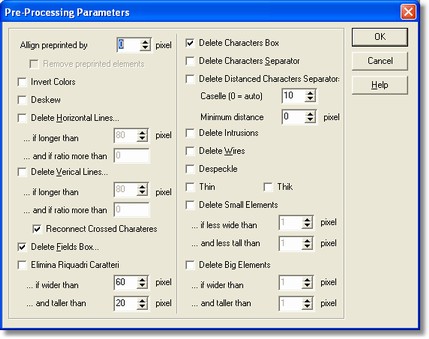
- Invert colors
It allows to invert the field colors.
-
Deskew
It is able to deskew the field as to the form.
-
Delete horizontal lines
It allows to delete the horizontal lines from a determined length. The way to convert centimeters into pixel is very simple: pixel = (cm / 2,54) * Resolution.
For instance, a 5 cm long line, having a resolution of 300, is: 5 / 2,54 * 300 = 590 pixel.
Lines are removed considering a tolerance of 2 white pixel: if there is dashed line with more of 2 pixel between one dash and another, it will not be removed.
In some case the line is upon a part of character, so the line removal damages the same character that will be remade automatically after the line removal.
The Ratio parameter shows the minimal relation(length/thickness) that the found element must have to be considered a line.
For example, it is supposed to have an image with a line consisting of 20 pixel long and 3 thick furthermore a box of 20x20 pixel. By setting the new parameter at 5, the line will be deleted (20/3=6.66>5) but not the square (20/20=1<5).
-
Delete vertical lines
It allows to delete vertical lines from a determined length. Use the same horizontal lines system to convert the centimeters into pixel.
If such as command is used into a barcodes field it needs to indicate carefully the right length so as to do not delete the whole code.
The Ratio parameter shows the minimal relation(length/thickness) that the found element must have to be considered a line.
For example, it is supposed to have an image with a line consisting of 20 pixel long and 3 thick furthermore a box of 20x20 pixel. By setting the new parameter at 5, the line will be deleted (20/3=6.66>5) but not the square (20/20=1<5)
- Reconnect Crossed Characters It allows to remake the character after using the delete lines option.
- Delete Fields Box
Deletion of the box bigger in size than the specified one.
Use the same horizontal lines system to convert the centimeters into pixel.
-
Delete characters boxe
By selecting Delete Fields Box it is possible to specify the deletion of the boxes containing characters as well as the number of the boxes to delete.
- Delete Characters Box By selecting Delete Field Box it is possible to specify the deletion of the characters separator and the number of the separators to delete.
- Delete Distanced Characters Separator It allows to delete the distanced characters separator, their number and their max distance.
-
Delete intrusions
It allows to recognize characters inside of the boxes by deleting some possible intrusive lines into the boxes.
-
Delete Wires
It can clean the images from black lines.
-
Despeckle
It can despeckle the image.
- Thin
If it is chosen this option the characters will be thinned. This feature is very useful if the characters inside of the files are particularly thick.
- Thik
If it is chosen this option the characters will be thickened. This feature is very useful if the characters inside of the files are not particularly thick.
- Delete small elements
All those smaller elements than the indicated size are deleted.
- Delete big elements
All those bigger elements than the indicated size are deleted.
Use the same horizontal lines system to convert the centimeters into pixel.