Post-processing Parameters Dialog
Previous  Top  Next

Description

The Post-Processing dialog allows to make some formatting operation for the recognized data.
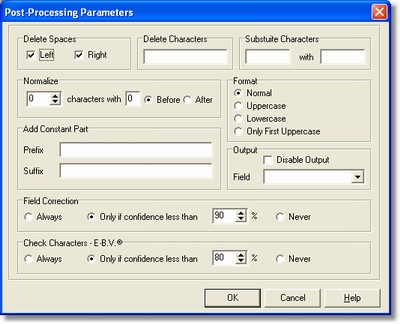
dialogpostprocessing

How to get it

Select the Post-processing command from the Fields menu after placing on some field.

Options

- Delete Spaces  
It is possible to delete the spaces at the beginning, at the end or both sides of a field.

-Delete Characters  
Into the box there can be the characters that can be deleted from the field.

-Substitute Characters  
Replacement of characters shown into the left box with the ones into the right box.

-Normalize  
Given a specific characters length (by the user), It is possible to add some characters into the fields with a number of lower characters than the normal length.

- Add Constant Part
It is possible to add a constant to the value both as suffix and prefix.

-Format  
Normal: there are both the upper-case and the lower-case letters as they are recognized.
Upper-case: all upper-case characters.
Lower-case: all lower-case characters.
Upper-case Initials only.

-Output  
Select the destination field of the table shown into the Application settings dialog.

-Field correction  
It allows to decide if the field has to pass in correction every time, never or only according to a percentage of confidence (statistic calculation on the characters reading).

-Check Characters - E.V.B. (Eye Blow Verification)  
This option, at the moment, is usable only for the fields that have been read by the OCR-B and ICR engines, as well as it allows, during the correction phase, to group the characters with a lower precision, so it allows to display them into the Verification page by separating them into different group: in this way the wrongly recognized characters become more evident and easily identifiable.

Notes

None.